

World Championship winning computer chess
software program & downloads for chess database, analysis & play on PC, Mac and
iPhone



|
|
|
|
The page is the online manual for HIARCS Palm Chess Pro 13.1. The manual is under development and will evolve over the next few weeks. The manual has the following sections:
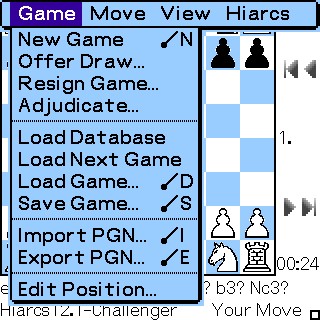
Palm Menu SystemThe following menus are available in Palm HIARCS. Click the menu icon, button or key to access the menu. Game menu
This menu is used for Game based operations as follows:
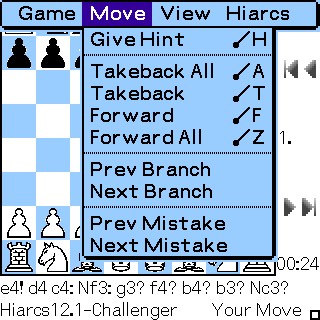
Move menu
This menu is used for Move based operation and navigation as follows:
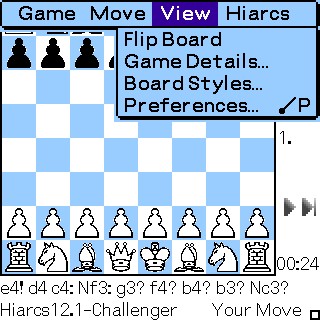
View Menu
This menu is used for View based information as follows:
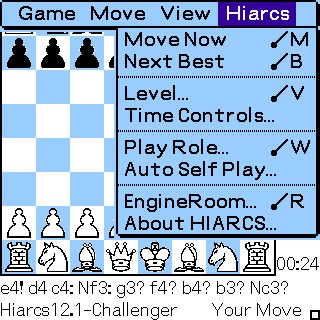
Hiarcs Menu
This menu is used for Hiarcs based information as follows:
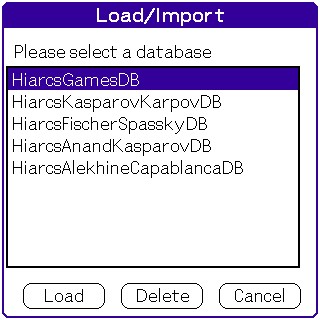
Load Database screen
This dialog lists the available databases and allows you to select a database to open using the Load button. A database can be deleted from this screen using the Delete button. The cancel button cancels the selection. The default HiarcsGamesDB cannot be deleted.
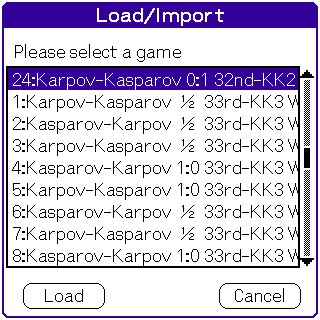
Load Game screen
This dialog screen lists the games in the database. It displays each game in the format Round, White, Black, Result, Event. The game can loaded by selecting it from the list and tapping the Load button. In the case of the HiarcsGamesDB there is also the option to Delete a game using the delete button.
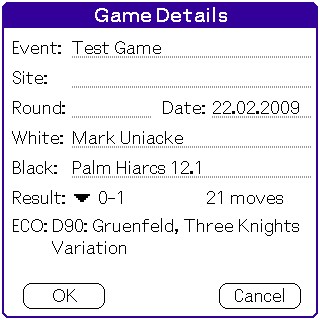
Save Game screen
The Save Game option leads you to the Game Details dialog so you can update
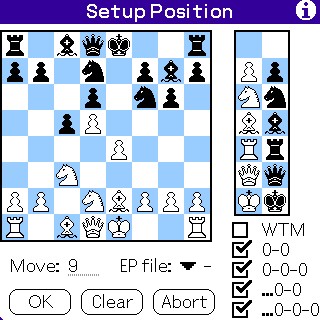
the fields you wish before saving. Edit Position screen
This screen allows you to edit the position. The Clear button can be used to clear the board of pieces. The Abort button cancels the edit of the position and returns to the position held before the edit session. To edit the position, select/tap a piece of the required colour from the palette on the right. Tap the square on which you wish to place the piece. If the square already contains the piece selected it will be removed, otherwise the selected piece will be placed on the square. You can also set the position rights for the new position. You can select if castling kingside or queenside is possible for white and black. You can select the side to move/play and the file of any en-passant capture were it possible. Finally the move number of the new position can be set. Hiarcs will not allow you to set impossible rights, for example if the king is not on its origin square castling is impossible. The OK button should be used to accept the new edited position. Game Details screen
The game details screen presents information about the game. You can set any of the fields of the game details except the opening name and number of moves.
Board Styles screen
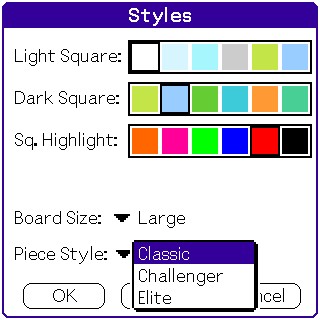
The Board Styles screen allows you to configure many aspects of the User Interface. You can adjust colours of the Light and Dark Squares, together with the highlights for squares and the background colour. You can adjust the board size using the selector to set Medium, Large and Full screen board sizes. The piece set to use can be selected from the Classic, Challenger and new Elite pieces. Tap the OK button to accept the new settings. Tap the default button to revert to the factory defaults. Tap the cancel button to cancel your changes.
Preferences screen
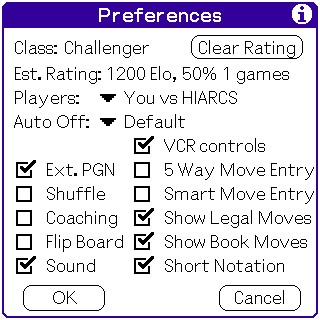
The Preferences screen allows you to configure the more general preferences and various other options. The rating is maintained from the games you play against Hiarcs. It is an estimate but its accuracy improves the more games you play. You can select the players in the game and this effects the role played by Hiarcs. You can set:
You can also select the auto off period as default (that set by Palm preferences - normally 2 mins), 5, 10, 15 mins and Always ON. The always ON setting is never saved in case you forget it is set and accidentally drain your battery. If a low battery warning occurs Palm Hiarcs will automatically switch to default. The various checkbox preferences are as follows:
Playing Levels screenOverview
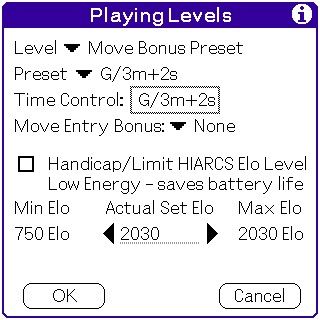
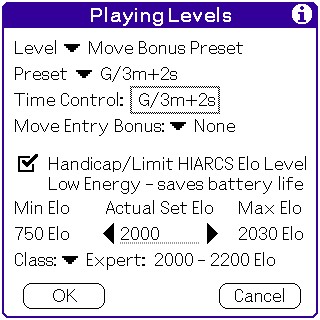
The Playing Levels screen allows you to set many aspects of the playing level. Click any of the following to read more.
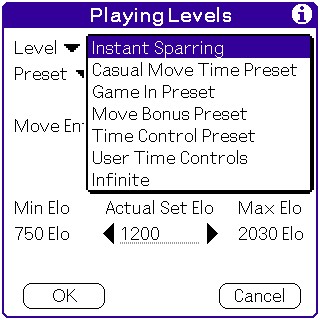
Level options
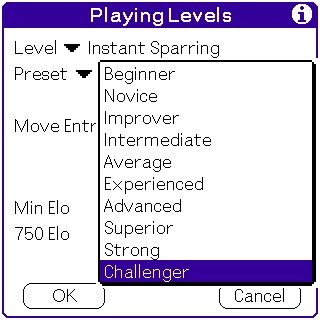
There are many levels to select from as follows:
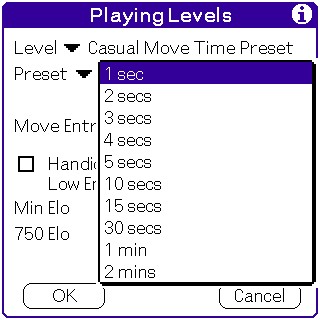
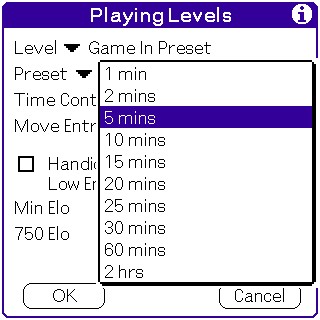
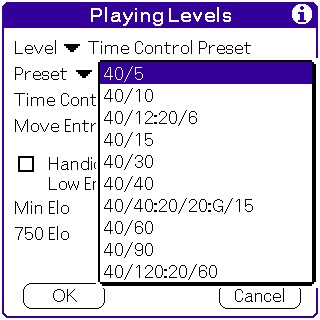
You can view the presets in their categories below. Beginner Instant Sparring Casual Move Time Presets
Game In Preset Time Control Preset
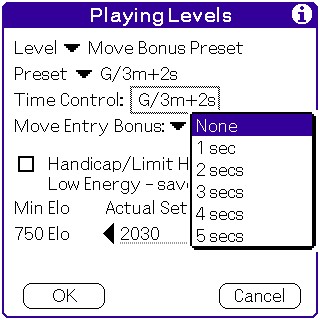
Move Entry Bonus
For any level you can set the Move Entry Bonus - this is a bonus time between
1 and 5 seconds which is allowed for you to enter a move. Your clock cannot gain
time if you use less than the bonus time for a move, but when using time to
enter you move your clock will gain up to the bonus time. This gives you a
little extra time to enter your moves and avoid losing on time. Handicap Limit HIARCS chess strength
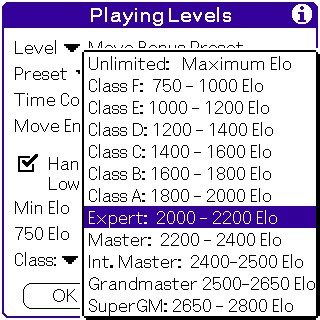
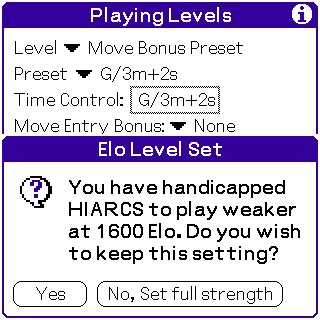
Handicap/Limit HIARCS Elo Class of Elo Handicap warningTo handicap/limit HIARCS to a specific Elo strength you should check the Handicap/Limit checkbox. Once selected, you can then either select the exact Elo you entering it into the numeric Actual Set Elo field or use the arrow buttons to decrement/increment the Elo count. The alternative is to use the Class selector to choose an Elo range. If you select a range at or above the maximum strength on your device Hiarcs will automatically switch off the handicap. The minimum Elo is set to 750 Elo for all Palm devices. The maximum Elo is computed based on the performance of your device and hence this figure varies widely between devices depending on the performance of the underlying hardware, especially the CPU. Time Control screen
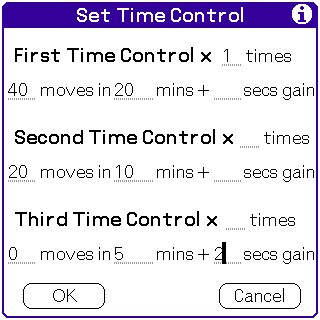
The time control screen enables you to set the number of moves to play in a time period and an increment for each of up to 3 time controls. Additionally you can define the number of times each time control is used. A zero for the moves indicates that ALL moves should be played. A star will appear in the "x times" field where the time control should repeat, the last time control Play Role options
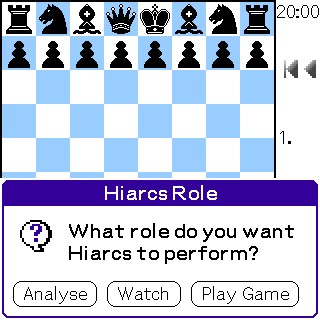
The Hiarcs Role message box gives you the choice to set what Hiarcs' role in the current game should be. Choose Analyse to get Hiarcs to begin analysing the current position while it awaits you moves which it will continuously analyse. To have Hiarcs just watch as you enter move select/tap the Watch button. To simply play a game against Hiarcs select/tap Play Game.
Engine Room screen
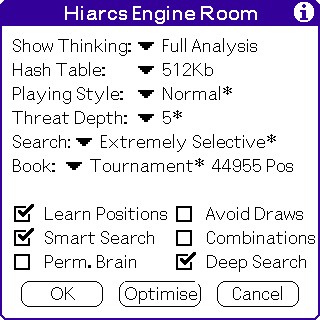
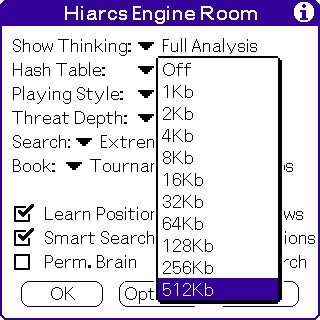
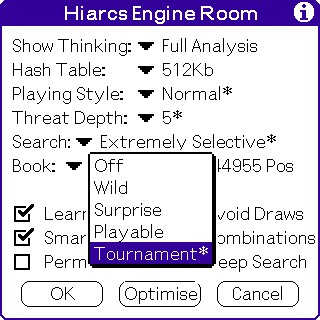
The Engine Room screen allows you to configure the HIARCS chess engine in detail. Select/tap the OK button to apply any changes to the Engine Room settings. Select/tap the Optimise button to set the parameters to their optimum settings. To cancel any changes tap the Cancel button. The following options can be checked on or off:
The following options can be selected from the pop up selectors:
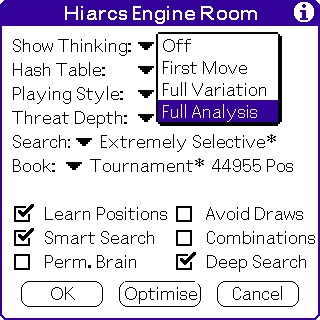
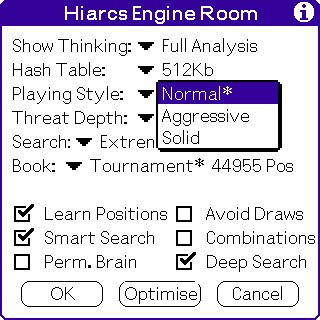
Show Thinking Hash Table Playing StyleYou can set Hiarcs to Show its Thinking in the following ways:
You can also set the Hash Table size for the engine. The available hash tables depend on the available dynamic ram on your device. Three playing styles are available, Normal, Aggressive and Solid with Normal being the default.
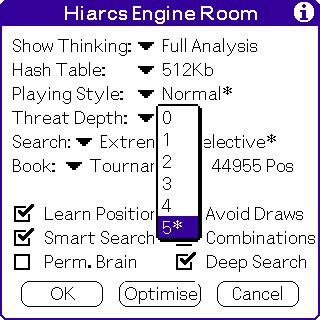
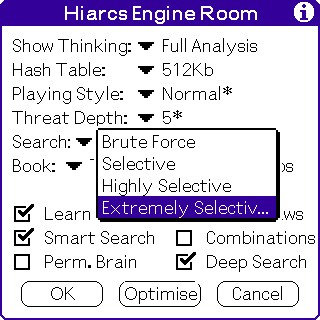
Threat Depth Search BookYou can configure the depth to which threats are computed ahead with the Threat Depth setting. The default of 5 is the best since it spots impeding threats better for both sides. The search can be configured for its degree of selectivity. The most effective setting is the Extremely Selective option which allows Hiarcs to reach greater search depths at little risk. You can download many opening books from www.hiarcs.com including the small, medium, large and full books. The book choice can be selected between a number of settings:
Game BranchesWhen analysing or trying out different game continuations you can use the unique game branch feature of Hiarcs Chess Pro. Let us look at an example to see how this new feature works.
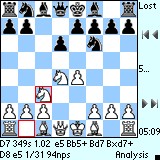
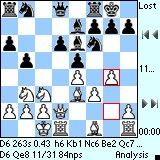
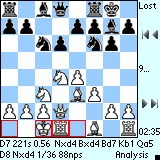
Here we are analysing game variations. We reach this position at the start of the modern Sicilian defence. Here we start analysing the Najdorf continutation 5...a6 and follow a line reaching this position:
Now I decide to go back to the first position diagram and try a Sicilian Dragon with 5...g6.
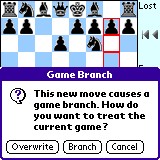
At this point Hiarcs detects a possible game branch and asks if how you wish to treat the current game. Your can choose one of the following options:
I choose to the Branch option and I then continue to enter moves in this new game variation reaching the following position:
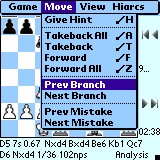
Now I wish to go back to the previous game branch to re-look at it so I select the Prev Branch menu option:
Hiarcs now saves the current branch (which was the Sicilian Dragon) and returns to the previous game branch which was the Sicilian Najdorf variation.
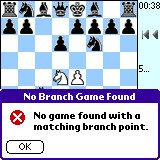
You can press the forward button to move through the Sicilian Najdorf line. At anytime you can go back to the Sicilian Dragon line by selecting the Next Branch menu item. In the event no more branches are found in the direction requested you will see the following error:
Hiarcs will store how the game branches are related in the event header using a special symbol. As a result if you later load a game with game branches you can navigate forward and/or backwards through the game branches using the Next Branch and Prev Branch menu items. In addition when deleting a game from the Hiarcs Game Database, if Hiarcs notices it is part of a set of related game branches you will be offer the option of deleting all the game branches at the same time. In this way to can manage the Hiarcs Games Database better. |
|
"generally I use
HIARCS." - Five time World Chess Champion
Vishy Anand, in a recent interview when asked what chess program he uses to
analyse with World Chess Champion, Vishy Anand, used "Powerful" HIARCS machine in preparations for his 2010 & 2012 world title matches "This level of service is one other big reason to buy HIARCS." - John Jackson † Highest performance
reached depends on computer used.
Computer Chess Software
with world class chess engine playing strength. |

 .
Please read our
.
Please read our